
The main window used when working in Roono is called the Workspace.
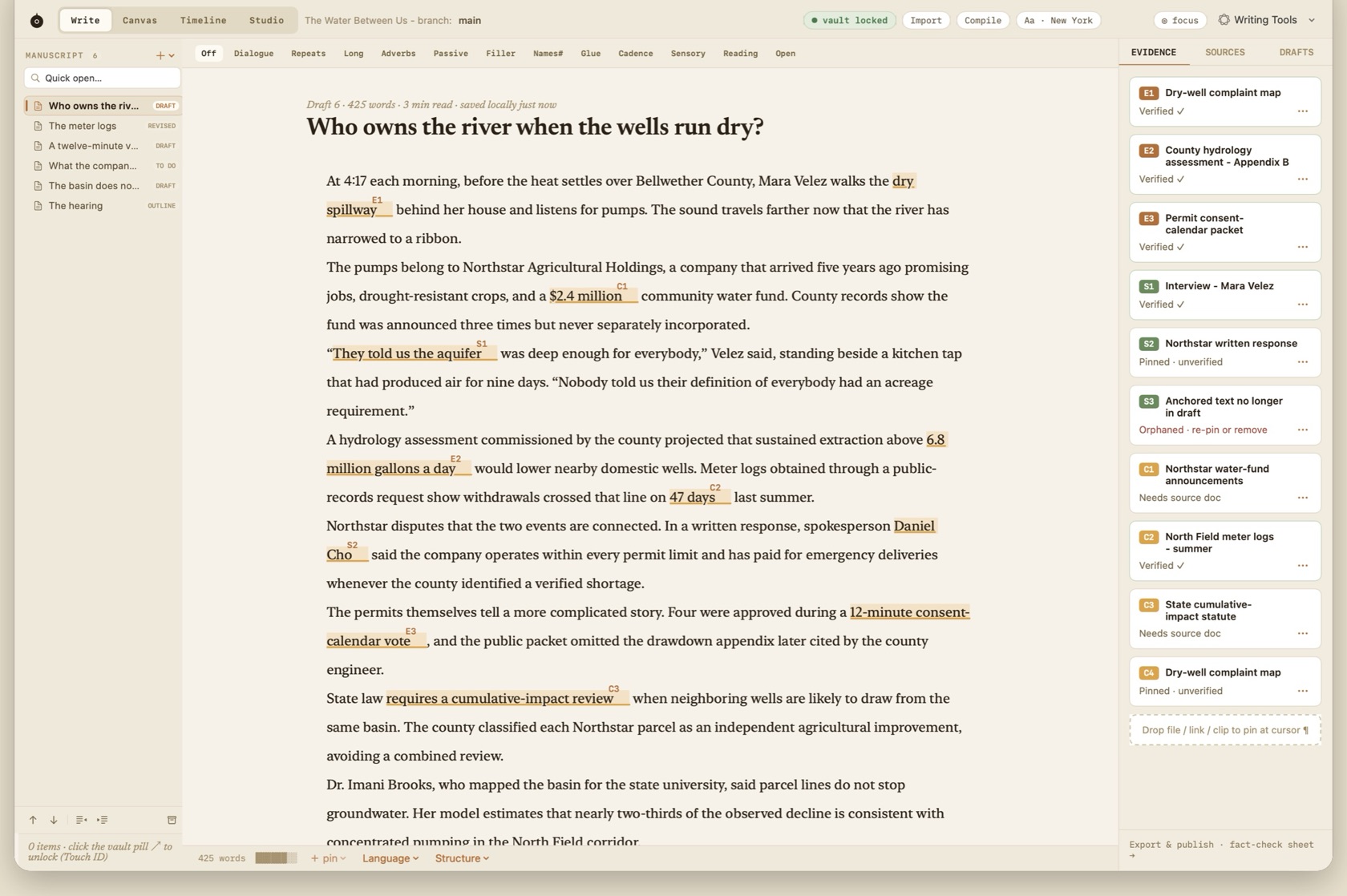
The Workspace window is structured into four primary regions: the toolbar along the top, the content area in the center, the Project Navigator and Context Inspector sidebars, and the top-level Agent workspace.
Toolbar
The toolbar provides immediate access to commonly used controls across your project. From left to right, the toolbar contains:
- The Roono Icon
- Click the Roono icon at any time to return to the Library screen, where you can switch between projects, view your recent writing sessions, or open the Encrypted Vault. Show Library is also in the File menu. New Project is ⌘ ⇧ N .
- Project & Branch Details
- Displays the name of the current project you are writing in, as well as the active Moment timeline branch (e.g. quieter-lede). Click this indicator to switch between narrative branches.
Mode Switcher
- Mode Switcher
- Switch between Roono's five dedicated workspaces: Write (prose drafting), Canvas (research corkboard), Timeline (version branches and 3-way merge), Studio (audio recording and transcription), and Agent (dedicated BYO-AI PTY terminal). ⌘ 1 through ⌘ 4 select Write, Canvas, Timeline, and Studio. ⌘ J opens Agent and returns to the previous writing mode.
Status Pills
- Vault Status Pill
- Indicates whether the project's hardware-encrypted Vault is locked. Click the pill or touch your Mac's Touch ID sensor to unlock confidential interview transcripts, sensitive sources, and contact keys.
- Typography Pill
- Displays the active editor typeface. Click to open the typography panel, where you can switch between Newsreader, New York, a humanist sans-serif, or IBM Plex Mono, and adjust line height and margin widths. Show Fonts is ⌘ T .
- Focus Mode Pill
-
Click to enter distraction-free Focus Mode. All window chrome folds away, the background transitions
to warm Night material (
#211c15), surrounding paragraphs are dimmed, and typewriter scrolling engages. You can also trigger Focus Mode with esc-esc or ⌘ \ . - Agent Terminal Pill
- Quickly open or toggle the dedicated Agent workspace (⌘ J ). Running in a native pseudo-terminal (PTY), your official CLI (Claude Code, Antigravity agy, OpenAI Codex, or Devin) runs directly inside your project context via the Roono MCP server.
- Sidebar Controls
- Show and hide the left Project Navigator (⌘ ⌥ 1 ) and right Context Inspector (⌘ ⌥ 2 ). The evidence rail is ⌘ ⌥ 3 .
Content Area
The content area is where you do most of your work. Your prose drafts, research boards, timeline tracks, and studio audio waveforms open here by default.
Along the top of the content area in Write mode is the metadata strip, displaying your current
draft version, word count, estimated reading time, and instantaneous save status.
Prose is rendered with generous line-height on paper (#f6f2ea), centered in an optimal reading column.
When a connected agent proposes an edit, Write mode shows an inline diff card on the manuscript. Deletions render as strikethrough and additions in green, with Accept ⏎ and Reject ⌫. Accepting writes the change onto the draft. Rejecting archives the proposal branch. Agents never edit the draft directly.
Split Views
The content area can be split into multiple panes, allowing you to view research material side-by-side with your manuscript.
The contracts nobody signed
Three shipping firms received harbor maintenance contracts last spring without a single competitive bid. Approval dates precede the applications themselves by as much as eleven days E3 .
“We followed procedure,” the port director said S1 . But internal memos from October 14 state clearly that standard bidding thresholds were bypassed
“Approved Oct 14, 2024 — Maintenance Section 4B. Exemption granted under emergency resolution 88.”
“We followed procedure. Every dollar was signed by the board before distribution.”
To open a split view, click the Split View button in the window corner. Splits open to the right. Holding ⌥ Option opens a split below the current editor instead.
- Write from Board: Drag research cards, web clips, or character profiles directly from the Canvas pane into your draft. Roono automatically converts them into inline citations and pins.
- Studio Transcription Split: View an interview transcript beside your manuscript. Pressing ⏎ on any speaker row pulls a quote directly to your cursor with an interactive live audio link.
Sidebars
On the left and right edges of the workspace window are two dedicated sidebars: the Project Navigator on the left, and the Context Inspector on the right.
Project Navigator (Left Sidebar)
The Project Navigator (⌘ ⌥ 1 ) provides a unified hierarchical view of your entire writing project:
- Inbox & Quick Capture
- A rapid-capture holding bay for unsorted research clips, snippets, and fleeting thoughts before they are organized into chapters.
- Manuscript Tree
- The ordered tree of groups, chapters, scenes, and sections that comprise your document. Reorder items by dragging them within the hierarchy.
- Entities & Story Bible
- Structured records for people, sources, locations, and organizations, with automatic backlinking to manuscript passages.
- The Encrypted Vault
- Hardware-encrypted storage for sensitive sources, confidential documents, and contact keys.
Context Inspector (Right Sidebar)
The Context Inspector (⌘ ⌥ 2 ) reveals supporting context for the text under your cursor:
- Evidence Rail
- Displays all evidence pins anchored to the active paragraph, including primary exhibit documents E3 , interview source contacts S1 , and unresolved claims C2 .
- Notes & Margin Annotations
- Scratchpad notes and private thoughts tied to the active section that accompany your draft without appearing in published output.
- Lineage & Provenance
- Displays who authored the section (writer or accepted agent proposal), the last modified timestamp, and the origin Moment.
Continuous Flow
When you select a group or chapter in the Project Navigator, Roono opens all of its descendant sections as a single continuous, editable flow. You can read and revise across scene breaks seamlessly without manually opening separate documents.