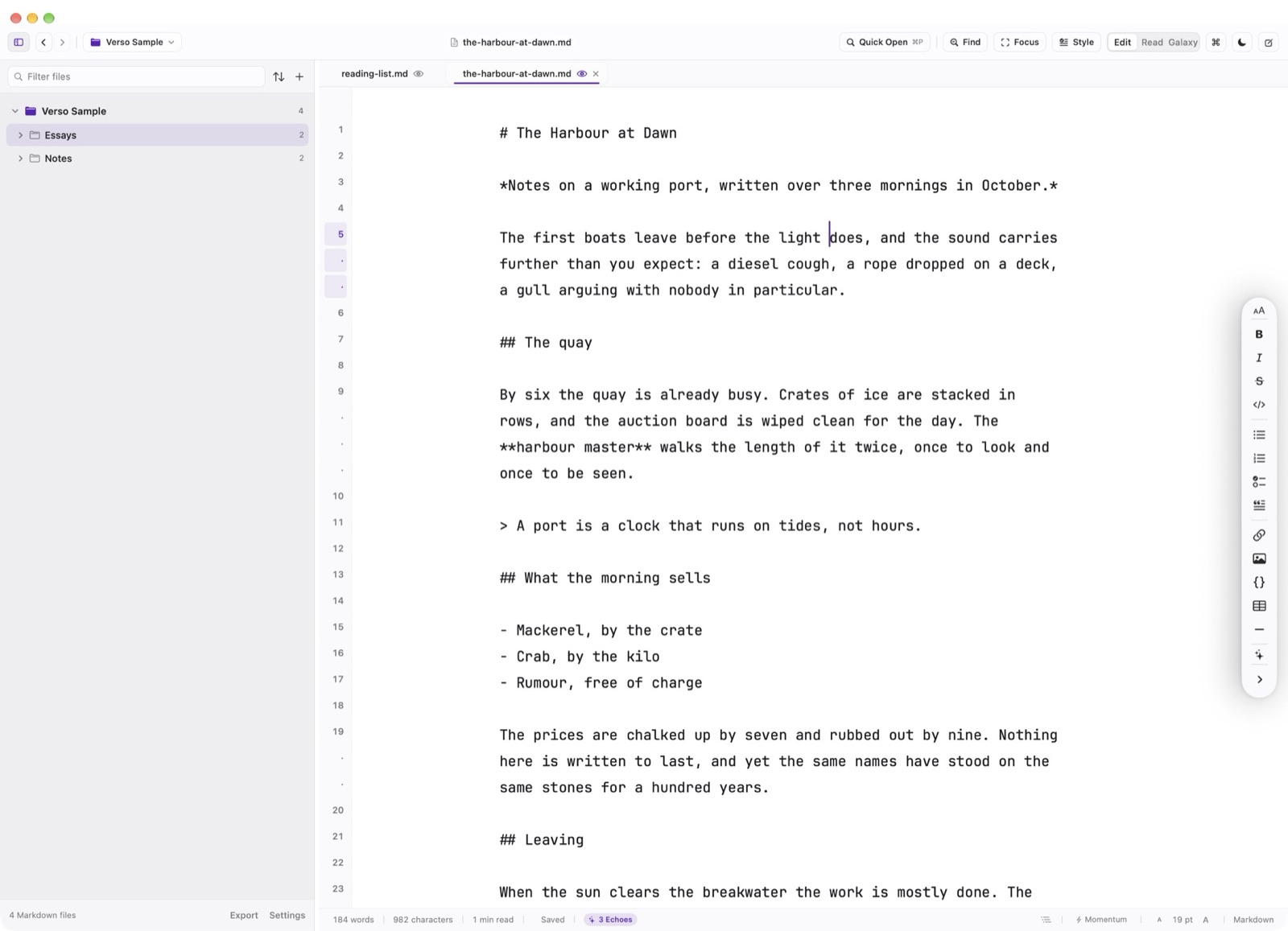
Verso is a native Markdown editor for macOS and Linux designed around one sovereign principle: it opens a folder of plain text files on your local drive and gets out of your way.
The Folder-First Philosophy
Most contemporary writing software forces your manuscripts into proprietary database silos, hidden cloud buckets, or opaque bundle formats. If the company shuts down or introduces a mandatory subscription, your work is held hostage.
Verso completely rejects this architecture. A document in Verso is an ordinary .md text file stored in a real filesystem directory. You can edit files simultaneously with Git, inspect them in Terminal with cat or grep, sync them with iCloud Drive, Dropbox, or Syncthing, or delete Verso entirely without losing a single sentence.
Zero Telemetry & Data Not Collected
When you write in Verso, your computer opens zero network sockets. The app contains no third-party tracking frameworks, no behavioral telemetry, no error pingers, and no background heartbeat daemons.
On the Mac App Store, Verso's official Apple privacy classification is Data Not Collected. The sandboxed binary carries no network client entitlement (com.apple.security.network.client). What you draft on your desk stays strictly on your desk.
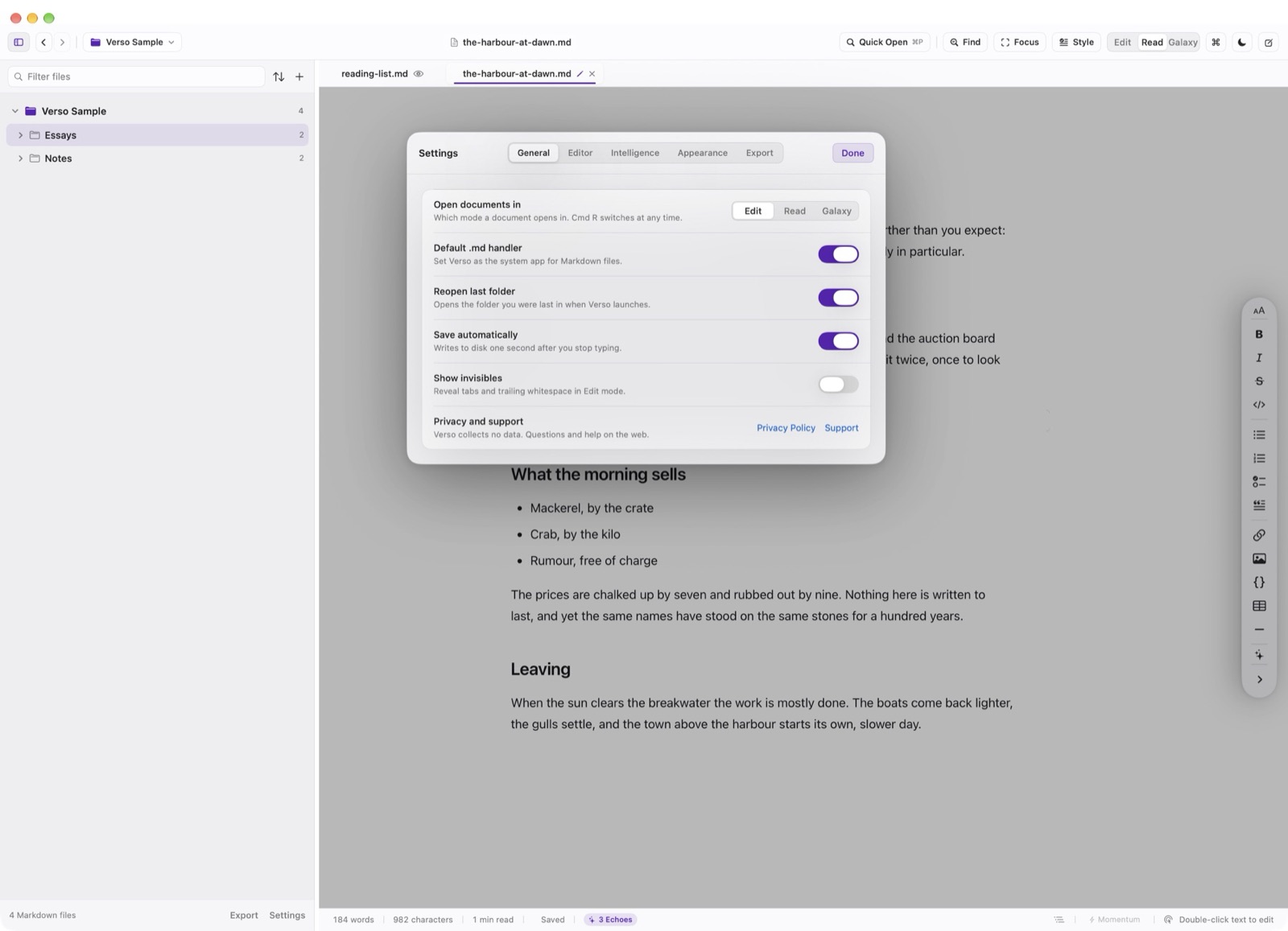
- App Sandbox Entitlements
com.apple.security.files.user-selected.read-write - Grants access exclusively to directories explicitly opened by the writer via the macOS system open panel.
- Network Sockets
DENIED - Verso possesses zero network privileges. It cannot connect to remote hosts, even if an embedded link is rendered.
Opening Your First Folder
To begin drafting, press Cmd O to select any folder on your Mac or Linux drive. Verso indexes Markdown files instantly using low-overhead directory descriptors and restores your expanded folders, active tabs, and cursor positions upon reopening.
If you work across multiple projects (such as a technical documentation repository and a personal journal), press Cmd Shift O to add secondary folder roots into a single unified workspace.