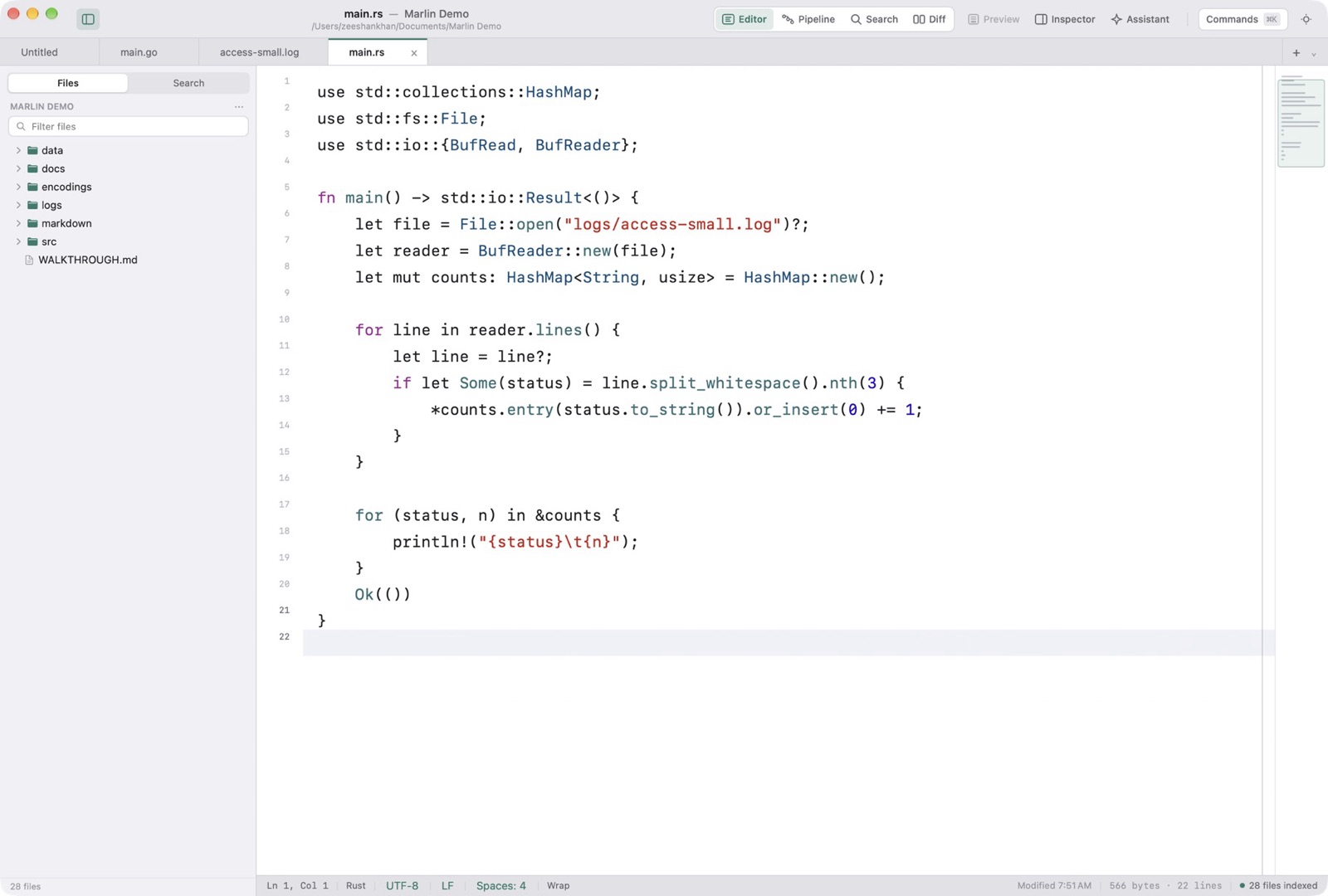
Marlin delivers a dense, keyboard-driven interface tuned for technical professionals who spend their working days inside text.
The Unified Window Shell
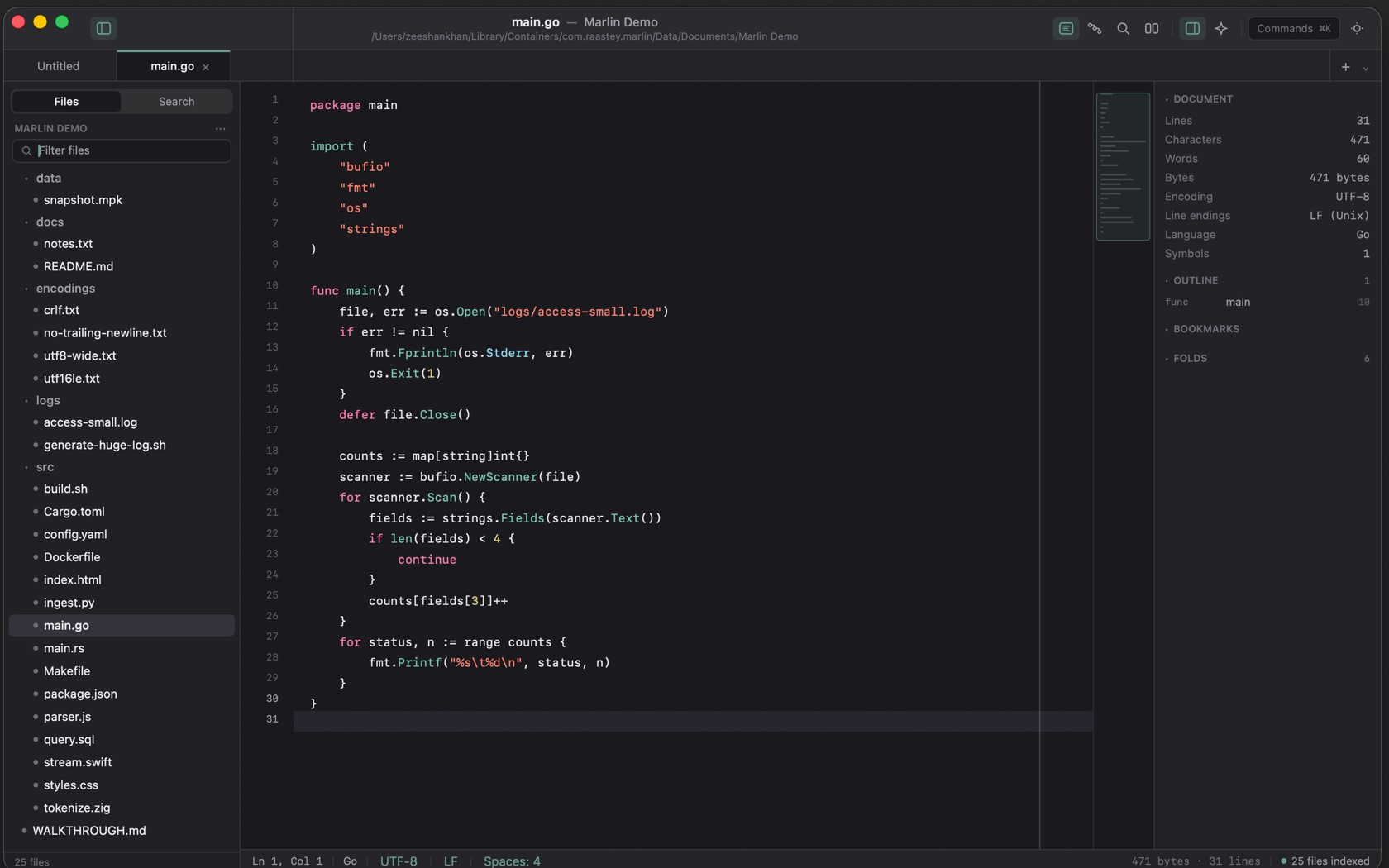
The toolbar is 46 points. The status bar is 25. Between them sit the document, Files and Search on the left, and the inspector on the right: Document, Outline, Bookmarks, Folds.
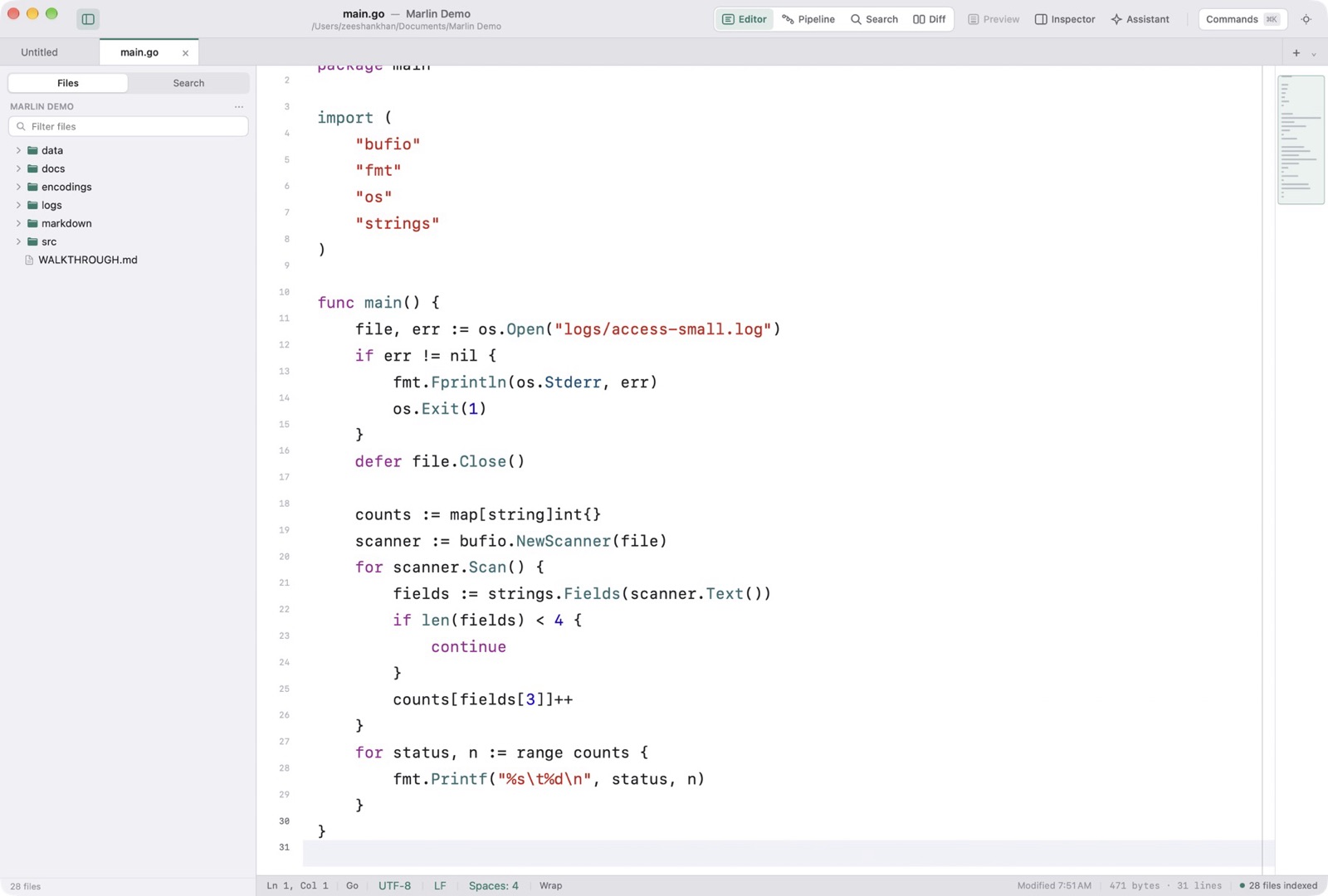
The Toolbar
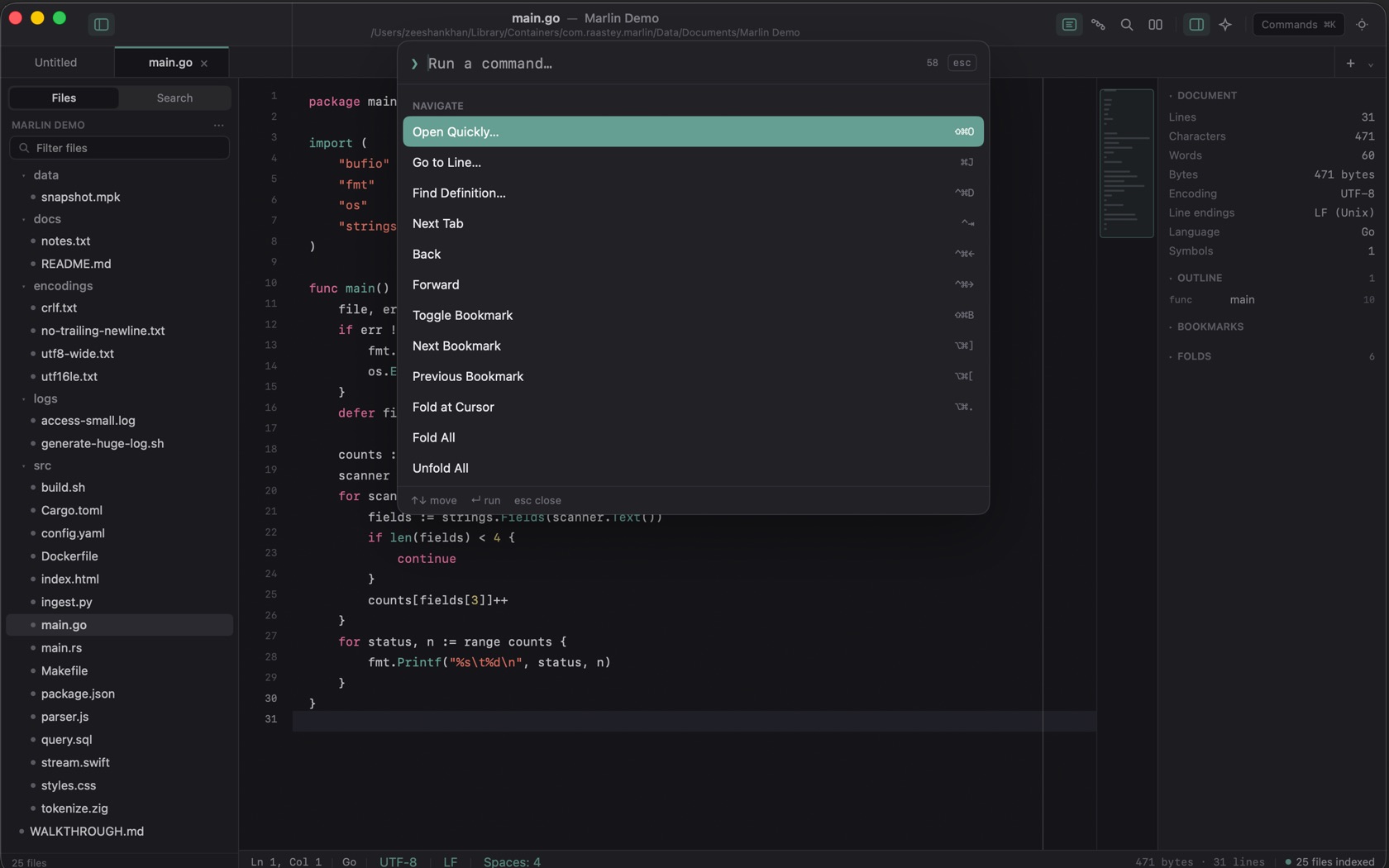
The title is the file and the project, with the path underneath. The row is Sidebar, then Editor, Pipeline, Search, and Diff, then Preview, Inspector, Assistant, and Commands. Pipeline is ⌥⌘P. Find in Project is ⇧⌘F. Compare with the file on disk is ⌘D. Commands is ⌘K.
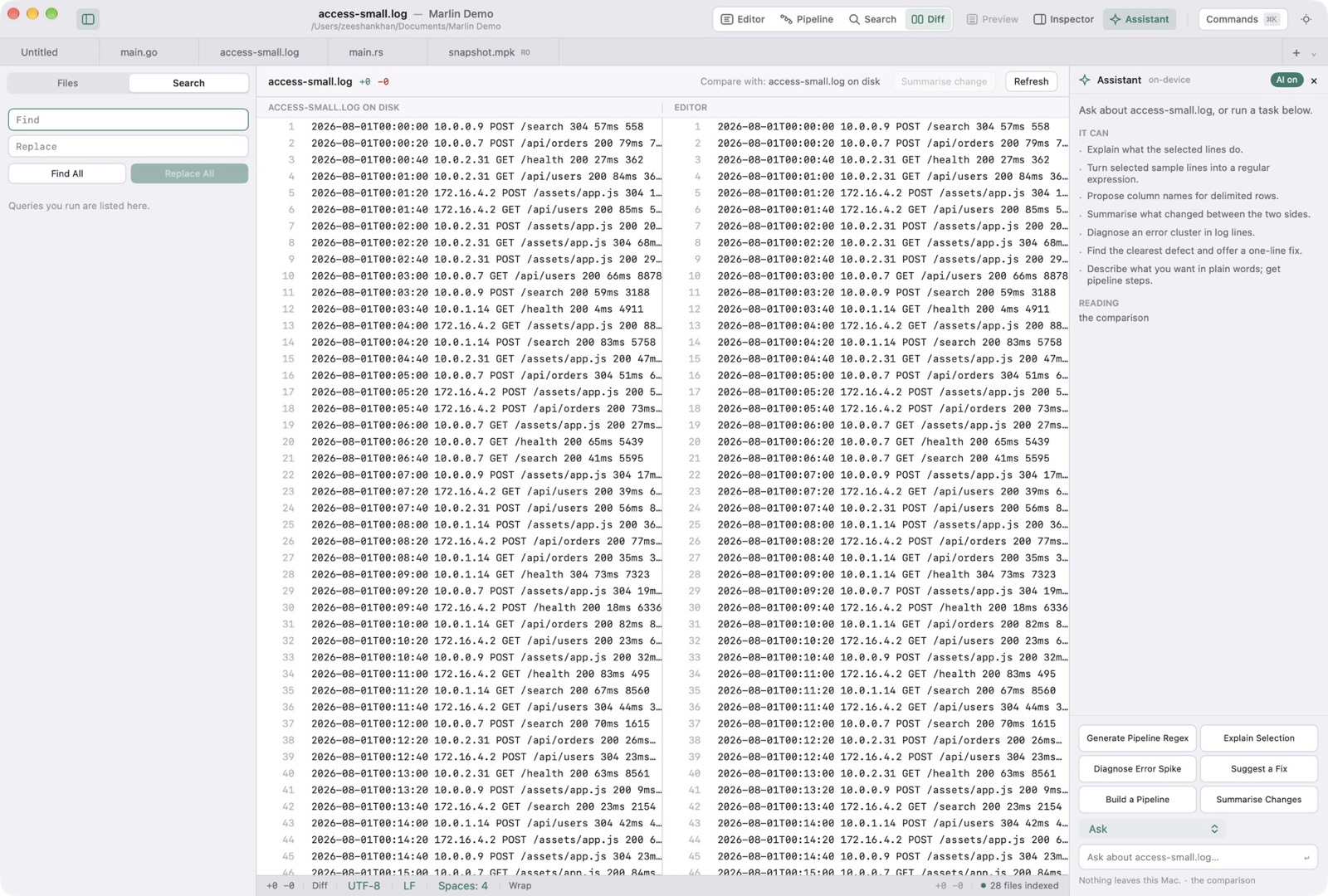
Files and Search
Files and Search are the two sidebar tabs. Filter files sits under the project name. An open file that has unsaved changes shows M in the accent color.
The Status Bar
The bar reads the line and column, then the language, the encoding, the line ending, and the indent. On the editor shot that is Ln 1, Col 1, Go, UTF-8, LF, Spaces: 4. The right side is the byte count, the line count, and how many files are indexed.