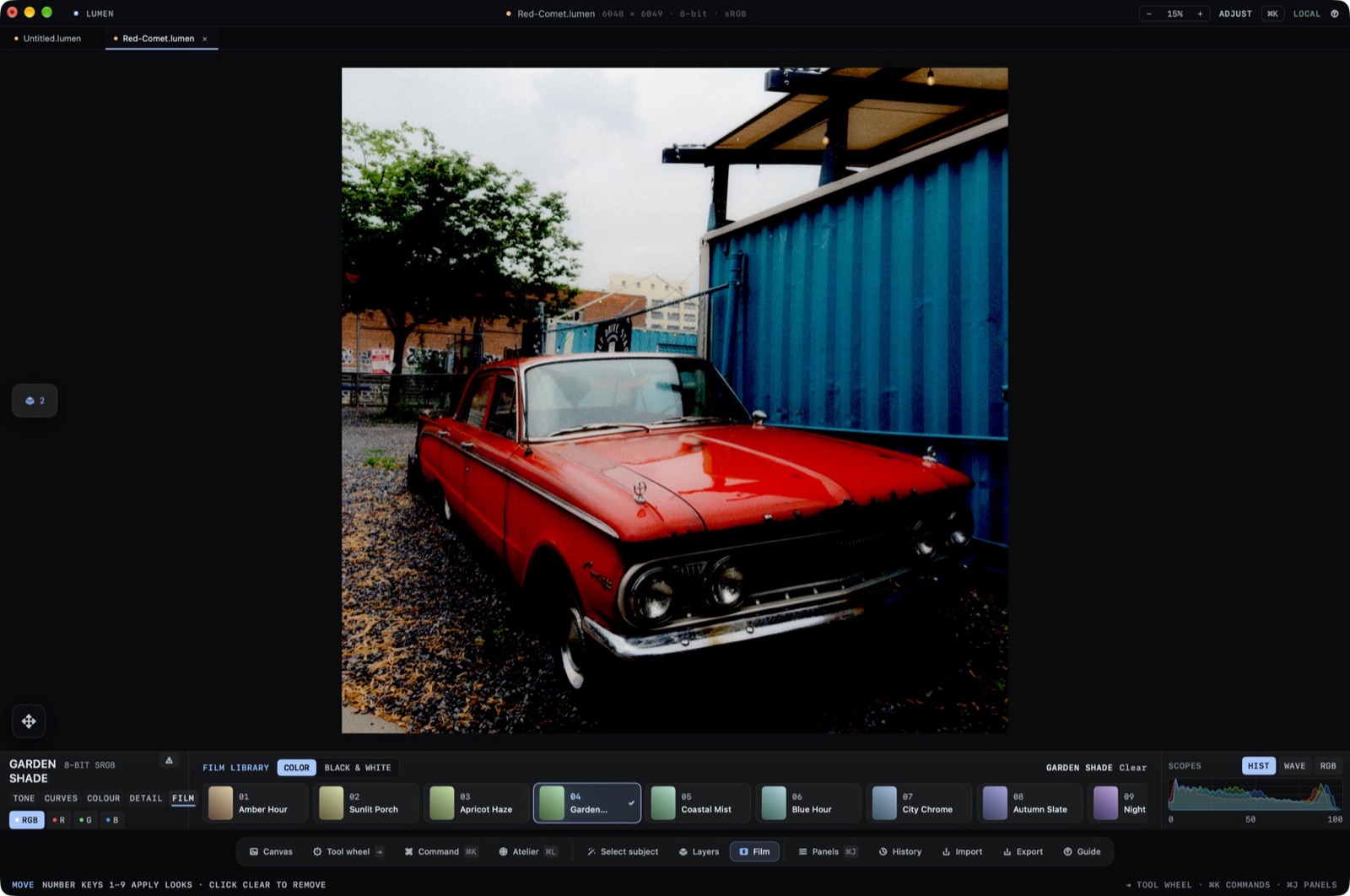
Film is a dock item. The library opens as a shelf under the canvas, with the active look named at the left of the ribbon and a Clear control beside it.
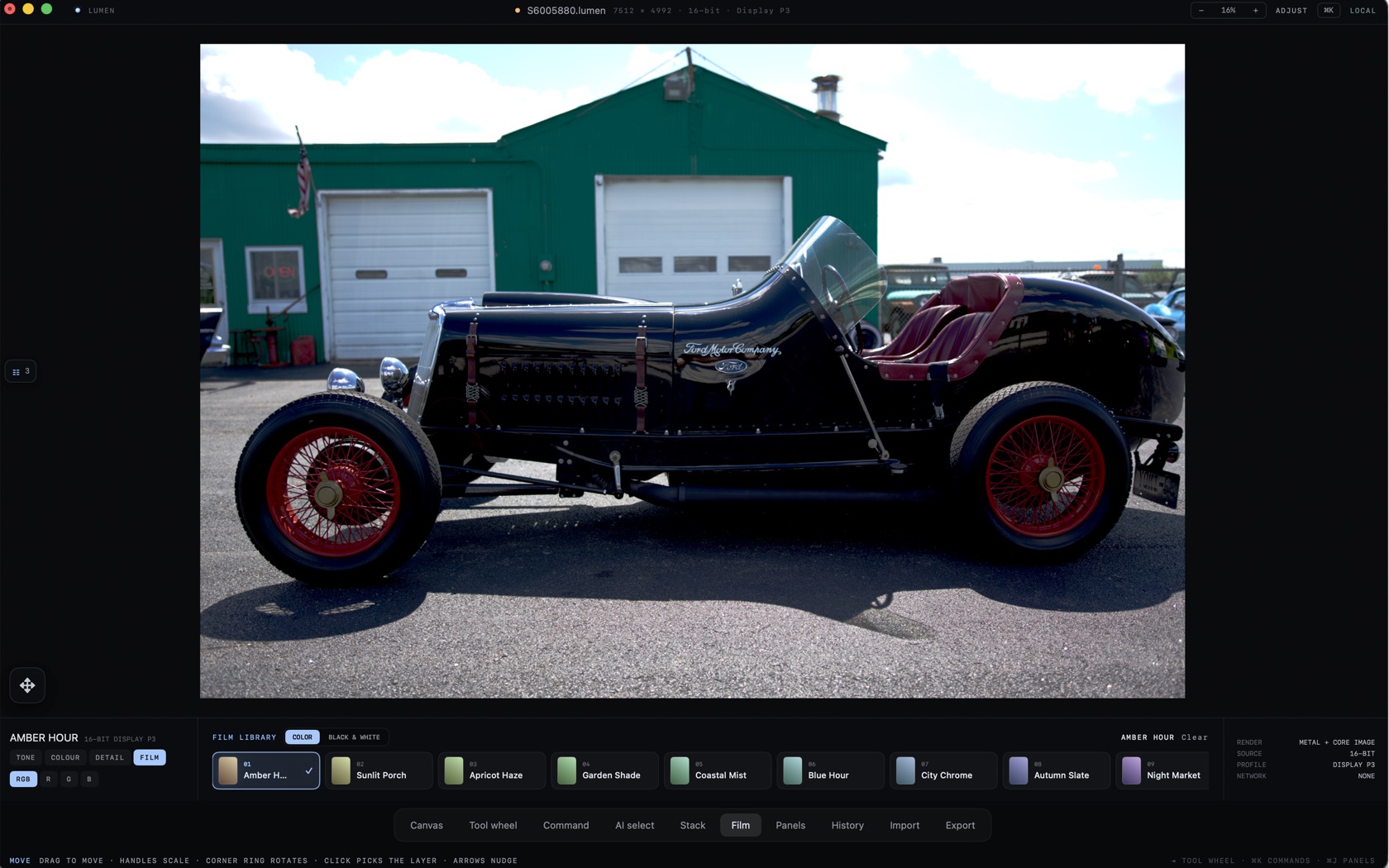
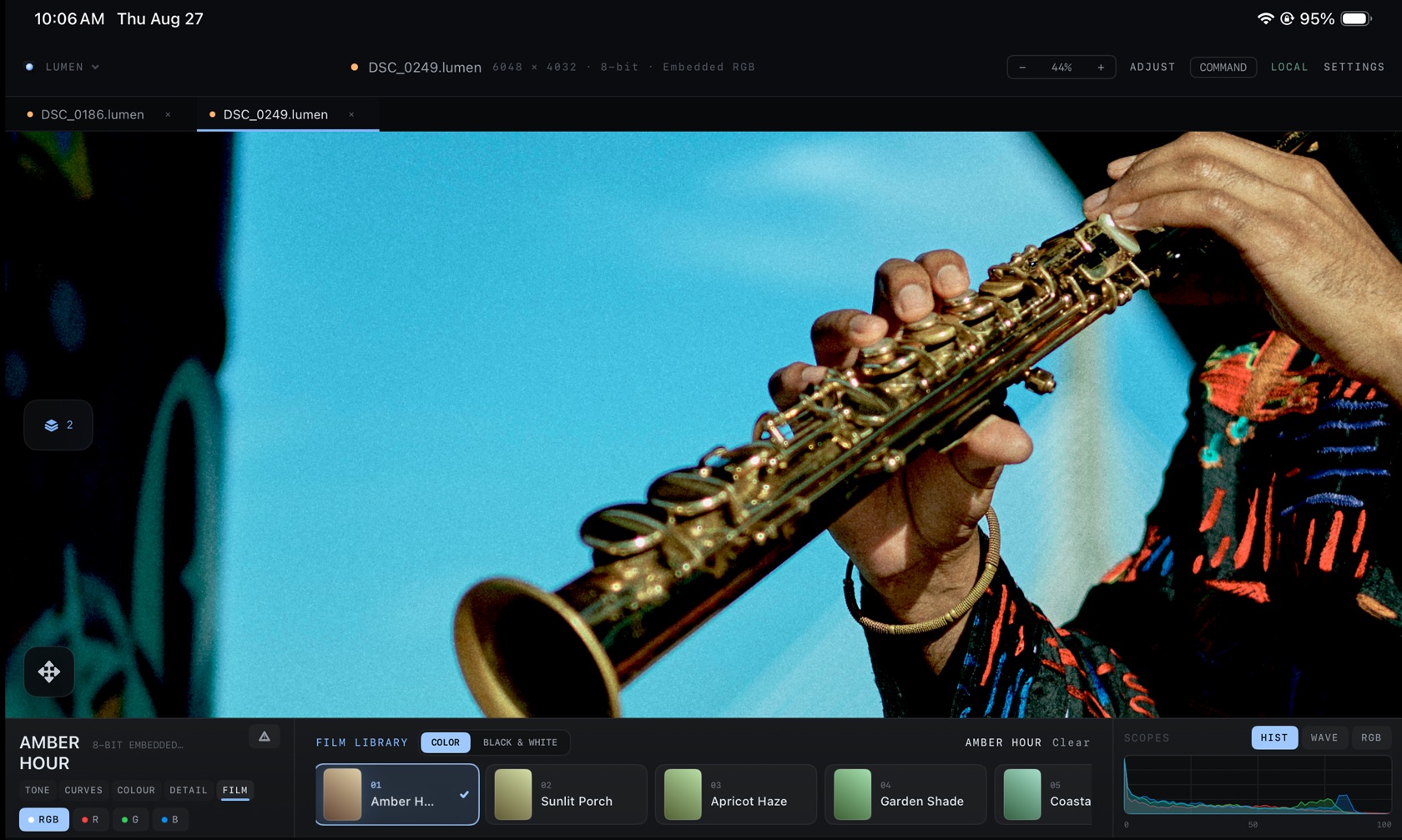
The Film Library
The shelf has two filters: COLOR and BLACK & WHITE. Applying a look leaves the original in the document. Clear removes the look.
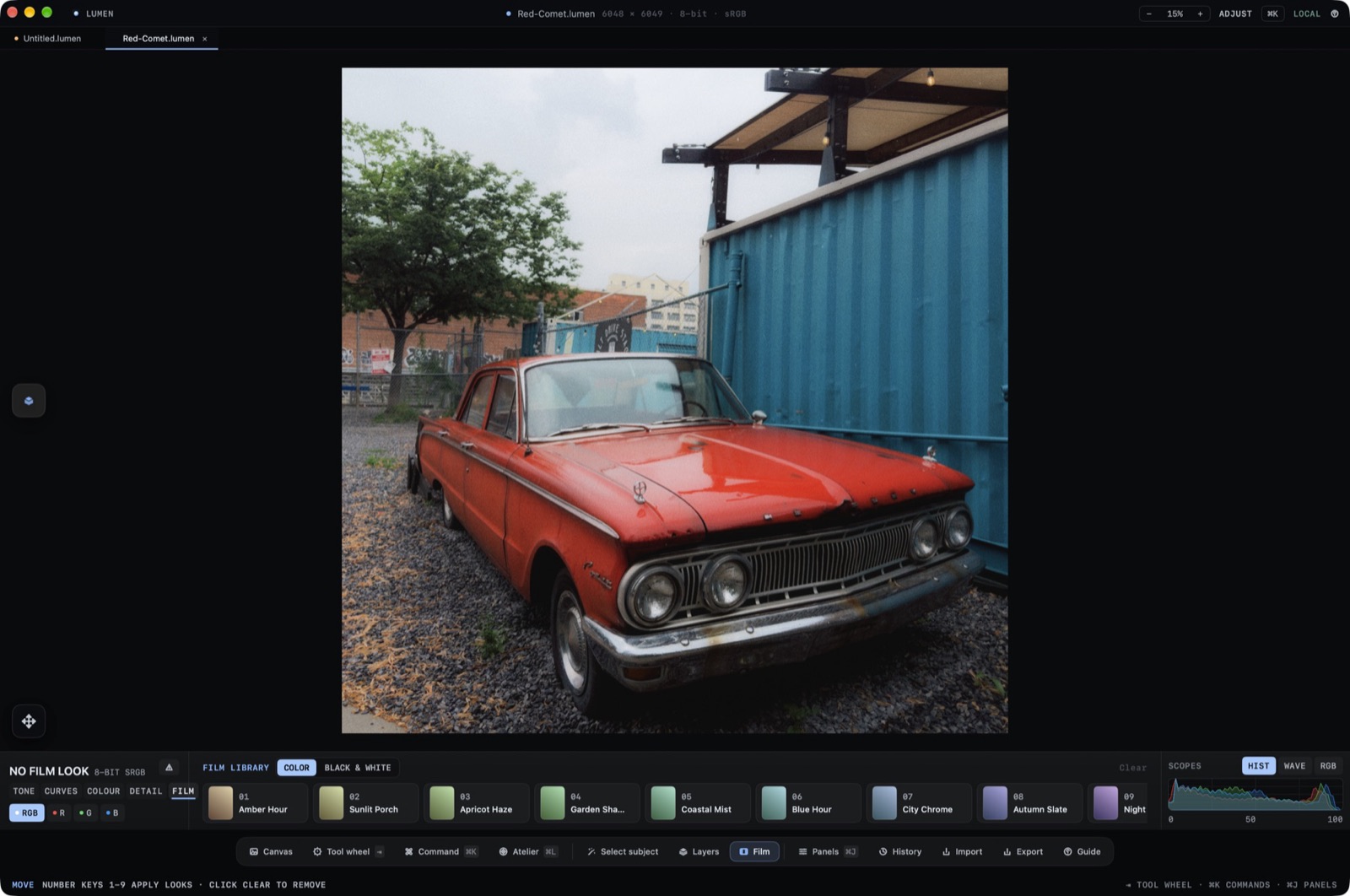
- 01 Amber Hour
- First colour look on the shelf. Clear sits beside the active name.
- 02 Sunlit Porch
- Colour look.
- 03 Apricot Haze
- Colour look.
- 04 Garden Shade
- Colour look.
- 05 Coastal Mist
- Colour look. The shelf continues past the first five.
- Blue Hour
- Colour look, further along the Mac shelf.
- City Chrome
- Colour look.
- Autumn Slate
- Colour look.
- Night Market
- Colour look at the far end of the Mac shelf.
Import a LUT
The add tile on the look shelf opens a menu. Import LUT asks you to choose a 3D .cube LUT. A look that does not carry tone is badged LUT.
Saved Looks
Save current look, on that same menu, asks for a name. A saved look that applies tone is badged MINE.
A Look from Another Photograph
Use look from Photos, and Use look from a file, read a look that was carried with that photograph and apply it here.